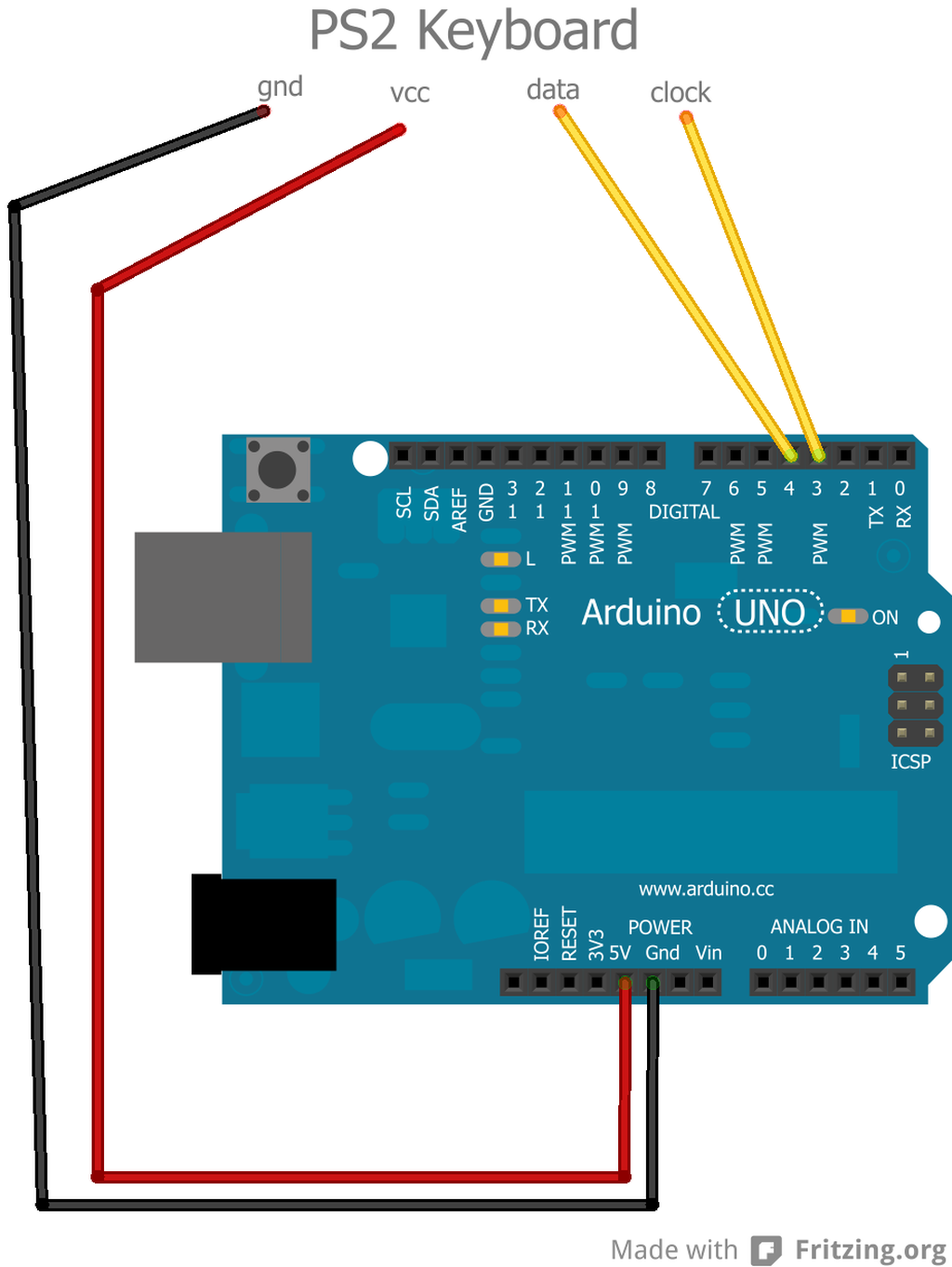
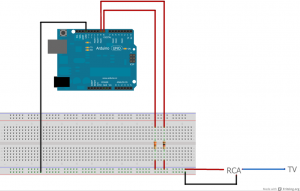
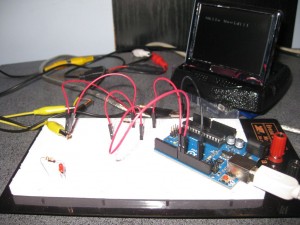
I wanted to find a way to call my kids, with me sitting on ground floor and them, sitting on the top floor of the house.
2 arduino, one acting as transmitter, one acting as receiver and here we go : they would not ignore me anymore 🙂
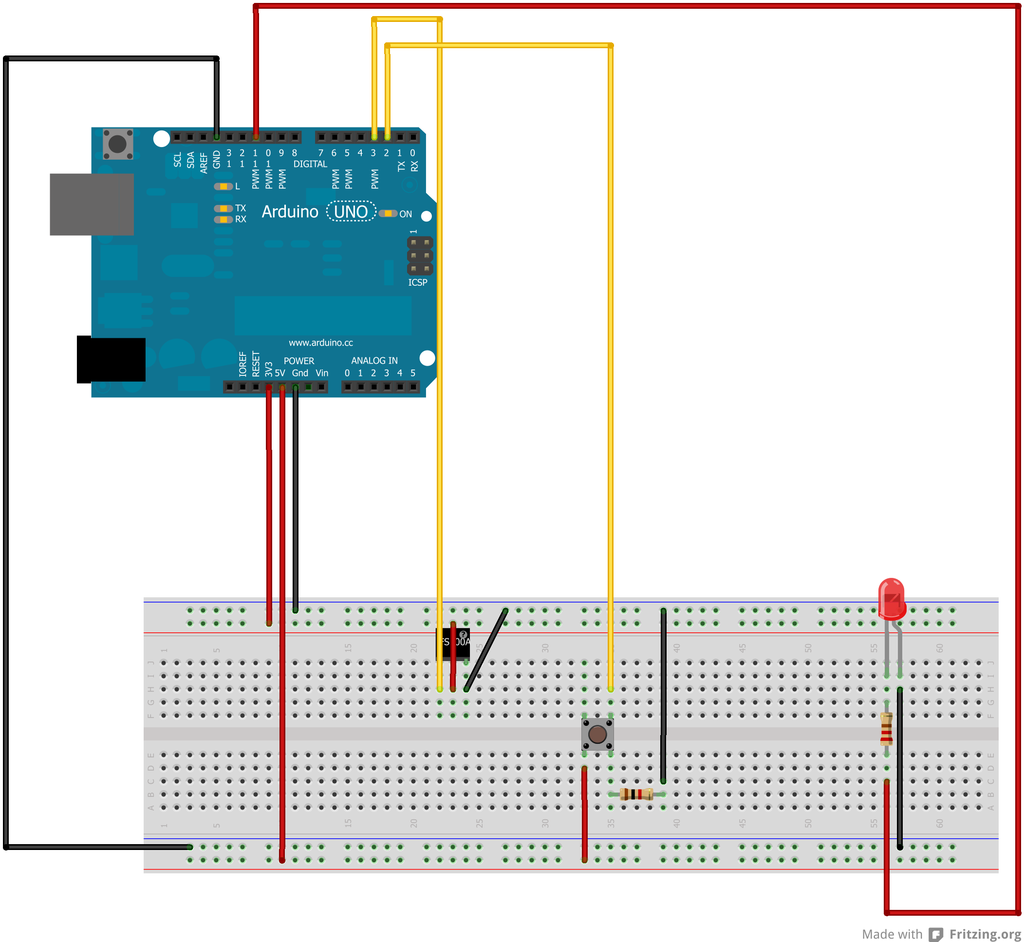
Lets start the transmitter (schema and code) : it has a push button to send the signal and a led to indicate it is transmitting.

#include

const int led_pin = 11;
//const int transmit_pin = 4;
//const int transmit_en_pin = 3;
const int transmit_pin = 3;
//const int transmit_en_pin = 3;
const int buttonPin=2;


void setup()
{

   pinMode(buttonPin, INPUT);        // sets the digital pin as output
  pinMode(led_pin, OUTPUT);      // sets the digital pin as output
      delay(1000);
    Serial.begin(9600);	// Debugging only
    Serial.println("setup");
  // Initialise the IO and ISR
  vw_set_tx_pin(transmit_pin);
  //vw_set_rx_pin(receive_pin);
  //vw_set_ptt_pin(transmit_en_pin);
  //vw_set_ptt_inverted(true); // Required for DR3100
  vw_set_ptt_inverted(false);
  vw_setup(2400);	 // Bits per sec
}

byte count = 1;

void loop()
{
  int reading = digitalRead(buttonPin);
  if(reading==HIGH) {
   //
  digitalWrite(led_pin, HIGH); // Flash a light to show transmitting
 char msg[7] = {'h','e','l','l','o',' ','#'};
 //msg[5]=count;
  vw_send((uint8_t *)msg, strlen(msg)+1);
  vw_wait_tx(); // Wait until the whole message is gone
  Serial.println(count);
  count = count + 1;
  delay(500);
  digitalWrite(led_pin, LOW);
  }
}
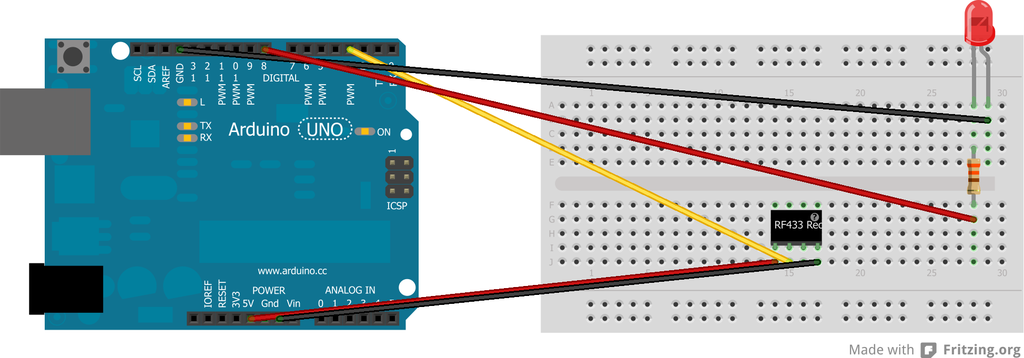
Next comes the receiver : it has a buzzer playing a small melody and a led blinking to indicate it is receiving.

#include
#include

const int led_pin = 8;
const int receive_pin = 3; //2
const int buzzer=11;

// tableau de mémorisation des notes de la mélodie
int melody[] = { NOTE_C4, NOTE_G3,NOTE_G3, NOTE_A3, NOTE_G3,0, NOTE_B3, NOTE_C4};

// tableau de mémorisation de la durée des notes : 4 = noire, 8 = croche, etc.:
int noteDurations[] = {4, 8, 8, 4,4,4,4,4 };

  void play(){
    // boucle pour parcourir les notes de la mélodie
  for (int thisNote = 0; thisNote < 8; thisNote++) { // thisNote de 0 à 7

    // pour calculer la durée de la note, on divise 1 seconde par le type de la note
    //ainsi noire = 1000 / 4 sec, croche = 1000/8 sec, etc...
    int noteDuration = 1000/noteDurations[thisNote];

    // joue la note sur la broche x pendant la durée voulue
    tone(buzzer, melody[thisNote],noteDuration);

    // pour distinguer les notes, laisser une pause entre elles
    // la durée de la note + 30% fonctionne bien :
    int pauseBetweenNotes = noteDuration * 1.30;
    delay(pauseBetweenNotes); // delai entre les notes

    // stoppe la production de son sur la broche 8 :
    noTone(buzzer);
  }
  }

void setup()
{
   pinMode(led_pin, OUTPUT);        // sets the digital pin as output
  pinMode(buzzer, OUTPUT);      // sets the digital pin as output
    delay(1000);
    Serial.begin(9600);	// Debugging only
    Serial.println("setup");

    // Initialise the IO and ISR
    //vw_set_tx_pin(transmit_pin);
    vw_set_rx_pin(receive_pin);
    //vw_set_ptt_pin(transmit_en_pin);
    //vw_set_ptt_inverted(true); // Required for DR3100
    vw_set_ptt_inverted(false);
    vw_setup(2400);	 // Bits per sec
    vw_rx_start();       // Start the receiver PLL running
}

void loop()
{
    uint8_t buf[VW_MAX_MESSAGE_LEN];
    uint8_t buflen = VW_MAX_MESSAGE_LEN;

    if (vw_get_message(buf, &buflen)) // Non-blocking
    {
	int i;


	// Message with a good checksum received, print it.
	Serial.print("Got: ");

	for (i = 0; i < buflen; i++)
	{
	    Serial.print(buf[i], HEX);
	    Serial.print(' ');
	}
        Serial.print(' ');
        for (i = 0; i < buflen; i++)
	{
	    Serial.print(char(buf[i]));
	    Serial.print(' ');
	}
	Serial.println();
        digitalWrite(led_pin, HIGH);delay(1500);digitalWrite(led_pin, LOW);delay(1500);
        digitalWrite(led_pin, HIGH);delay(1500);digitalWrite(led_pin, LOW);delay(1500);
        play();
    }
}
Voila !
 .
.